


|
IT > Software > Geographic Information Systems > Constructing Maps |
|
|
|
ArcGIS Pro is an easy-to-use program to display map data, symbolize it in useful ways, and output it to common, shareable file formats. This tutorial will guide you through constructing, coloring, and saving a simple map using ArcGIS Pro, the primary component of ArcGIS, using prepared data. In the process of doing this, you will become familiar with some of the menus and procedures you would use to create maps using your own resources. Getting Set UpSince this tutorial will be using specific maps and data, the next step is to make your own copy of the tutorial data. You can use your own computer if it has ArcGIS installed, or you can use the Virtual Computing Lab (VCL), which provides a remote Windows computer with ArcGIS. Procedure : Getting the Tutorial Data
The folder
Note that many of these files have the same root name, e.g. states; this means that they must all stay together to work properly. If you don’t see the period and the following text, known as a file extension, your computer is still in Windows’ default mode of hiding them. The different file types are distinguished by their icons and a description that appears if you View a folder with Details. The first three sets of data are known as shapefiles (although only one file has the extension .shp), which is one of the basic data formats that is understood by ArcGIS. The fourth is a raster file, an image in TIFF format that actually contains elevation data. Recommended: By default, Windows hides file extensions, but it’s better to leave them visible to more easily distinguish file types. Procedure : Showing File Extensions
Warning: Since some — but not all — of the ArcGIS programs have trouble handling file names with spaces or special symbols, do not rename the provided folders and files unless necessary. Navigating ArcGIS ProBeginning with ArcGIS Pro
|
| Tool | Action | Control |
| Any | Zoom in | Point at the new location and slide two fingers towards you (trackpad) or rotate scroll wheel towards you (mouse). |
| Any | Zoom out | Slide two fingers away from you (trackpad) or rotate scroll wheel away from you (mouse). |
 Explore (or hold down C key) |
Pan (move the map) | Click-and-drag the map to center on a new location. |
Explore and hold down shift key |
Zoom in by 50% | When the cursor changes to  click on the new location. click on the new location. |
| Zoom to a rectangular region | When the cursor changes to click-and-drag a rectangular region. |
|
 |
Zoom in to current center by 20%. | Click |
 |
Zoom out from current center by 20%. | Click |
 |
Full extent: zoom out to the full view of all of the data. | Click |
 |
Go back to previous map view — if you appear to lose your map, this will bring it back. | Click |
 |
Go forward to next map view. | Click |
Experiment: Try zooming in and out of the map, panning, and using the full extent button to return to the original map view. Also try using the back and forward buttons to move along the sequence of views you’ve created.
We’ll talk about some of the other tools on this ribbon later.
The degree to which one has zoomed in to or zoomed out from the map is commonly expressed by comparing a distance on the map to the same distance in the real world. So, for example, the distance from New York to Los Angeles is about 6 centimeters in the computer view above, but roughly 4,000 kilometers in real life. Since 6 cm = 0.00006 Km, we can calculate a ratio of these two numbers that doesn’t depend on units, 0.00006 Km : 4,000 Km = 1 : 70,000,000. This ratio describes what one map unit corresponds to in the real world, and is called the map scale.
ArcGIS Pro displays the current map scale in a text field / menu at the top
of the screen just to the right of the button  Add
Data:
Add
Data:

Intially the scale for your map will be around 1 : 100,000,000,
depending on the size of the map display pane. As you
use the zoom buttons in the Tools toolbar,
the scale adjusts automatically. It’s also possible to
change the map scale by clicking and typing directly
in the text field, or by clicking on the adjacent pop-up
menu button  and
choosing from a list of common values.
and
choosing from a list of common values.
Experiment: Observe how the map scale changes as you zoom in and out of the map. Try changing the scale by typing a number in its text box, and by choosing a value from the menu.
Note that as you decrease the second number in the map scale ratio, the scale increases. Cartographers therefore use the following terms to describe scales:
|
|
When you add a map layer, you will also bring along an attribute table describing the individual features of the map. For example, every state in the map has a name, and we may want to label them, so we need to know how those names are associated with the polygons.
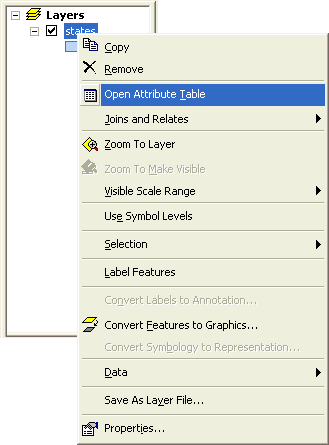 Procedure : Viewing a Map Layer’s Attribute Table
 ArcGIS Pro, in the Table of Contents, right-click on the name of the layer, e.g.
  states.
 Open Attribute Table.
Shortcut: you can also open a layer’s attribute
table by holding down the Ctrl key and double-clicking
on the layer’s name in the Table of Contents.
An attribute table appears in its own window floating above the map, and it looks something like the following:
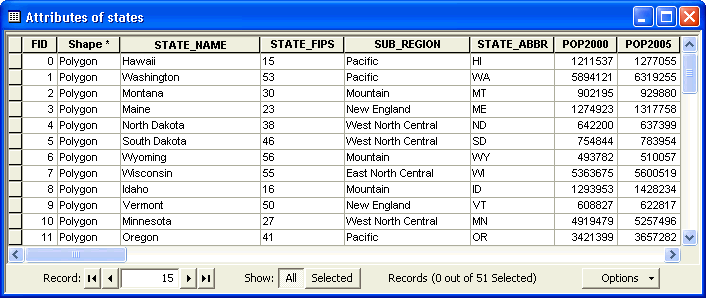
In this table, every feature of the layer is listed in its own row or record. Each column or field represents a different attribute of these features. So, in this case, we see each state name on a different row, along with its population in 2000 and 2005, its federal information-processing code, etc.
Every attribute table will begin with the two structural fields FID and Shape. The first is a Feature Identifier that will always be a unique number to distinguish one feature from another. The second is a summary description of the geography of this feature; hidden behind the text “Polygon” there’s a lot of information about how to draw the lines that comprise it.
All other fields are optional, but their presence is important to enable the true power of GIS. These fields are usually one of two types:
Note that sometimes fields appear to be numeric but in fact are text, e.g. STATE_FIPS, because they are stored as a sequence of individual digits.
The features in a table are often in a random order. However, you can compare them more easily with each other by sorting them by any one of the attributes in the table.
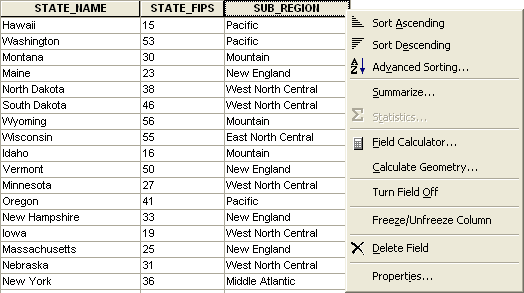 Procedure : Sorting Attribute Table Records ArcGIS Pro,
in a layer’s Attribute table, pick a
field, e.g. STATE_NAME, and double-click
on its header, the name of the field at the top of its
column.
Procedure : Sorting Attribute Table Records ArcGIS Pro,
in a layer’s Attribute table, pick a
field, e.g. STATE_NAME, and double-click
on its header, the name of the field at the top of its
column.Note that the column will sort itself in ascending order, from A to Z.
 Sort Ascending and
  Sort Descending, but
instead select the third one,
Sort Descending, but
instead select the third one,  Advanced Sorting….
Advanced Table Sorting will
now appear; it lets you choose multiple columns
on which to sort in sequence:
Advanced Sorting….
Advanced Table Sorting will
now appear; it lets you choose multiple columns
on which to sort in sequence: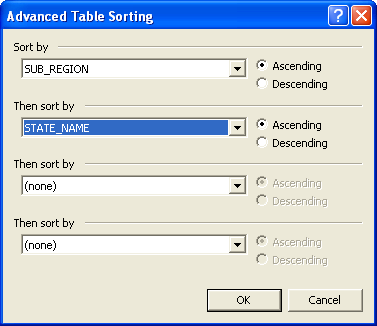
Note
that now all of the records are sorted according
to the first field,
and within each group the records are sorted
by the second field.
Note that all of the data in a row stays together, even though you’ve sorted on a single column (something that doesn’t automatically happen in a program like Excel); this is a common feature of a database.
Experiment: Sort the data by different fields in the table.
Once you have found a feature in a table, you can locate it on the map in a few ways.
The most common is to select it, but you can also flash it and zoom to it.
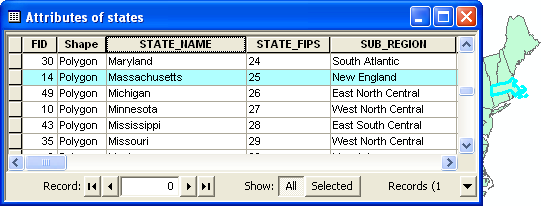 Procedure : Locating Attribute Table Records on the Map ArcGIS Pro,
in a layer’s Attribute table,
scroll to a feature you are interested in, and
click on the button
Procedure : Locating Attribute Table Records on the Map ArcGIS Pro,
in a layer’s Attribute table,
scroll to a feature you are interested in, and
click on the button  Select
Record at the far left end of the record.
Select
Record at the far left end of the record.The feature is now selected , and its record will be highlighted in an aqua color.
In addition, the feature will be highlighted in the same color on the map itself; you may have to scroll, zoom, and/or move the attribute table around to see it.
Select
Record and then click on the menu item  Select/Unselect;
 Clear Selected Features. Select
Record and then click on the menu
item
Clear Selected Features. Select
Record and then click on the menu
item  Flash. Select
Record and then clicking on the menu item
Flash. Select
Record and then clicking on the menu item  Zoom To.
The information in the attribute table can be used in a more focused way to explore map features.
When you don’t have the attribute table open, and you
recognize features on the map, you can also select them
using the tool Select Features.
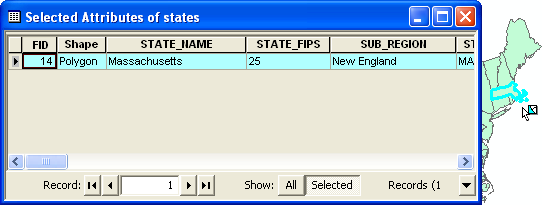 Procedure
: Selecting Features ArcGIS Pro,
in the toolbar Tools,
click on the button Clear Selected Features;
this will remove any highlighting remaining from
the previous procedures. Select Features.
Procedure
: Selecting Features ArcGIS Pro,
in the toolbar Tools,
click on the button Clear Selected Features;
this will remove any highlighting remaining from
the previous procedures. Select Features.When you don’t have the attribute table open, a quick
way to get information about a particular map feature
is to use the tool Identify.
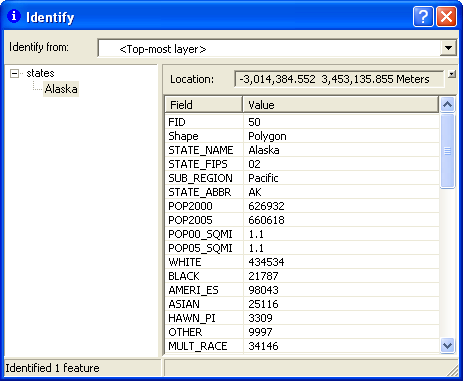 Procedure
: Identifying Features ArcGIS Pro,
in the toolbar Tools,
click on the tool Identify.
Procedure
: Identifying Features ArcGIS Pro,
in the toolbar Tools,
click on the tool Identify.With a single layer on the map, these options all have the same effect; there will be more about multiple layers later.
More often than not you won’t recognize a feature on the
map, but you can find it without going into the attribute
table using the tool Find.
Find.
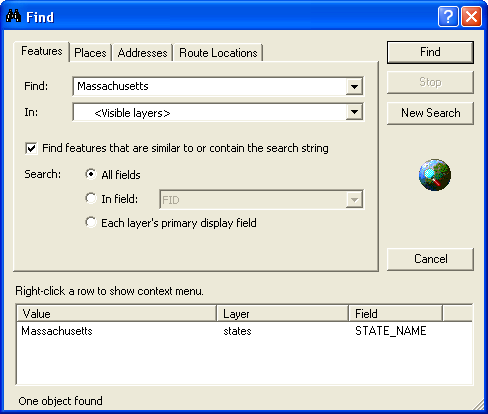 Procedure
: Finding Features ArcGIS Pro,
in the toolbar Edit,
click on the tool Find.
Procedure
: Finding Features ArcGIS Pro,
in the toolbar Edit,
click on the tool Find.
With a single layer on the map, these options all have the same effect; there will be more about multiple layers later.
Zoom To.There is, of course, a more general way to identify features on a map, and that is by labeling them on the map itself.
Every map you’ve ever seen probably includes labels that give names to the features on the map.
ArcGIS can label a layer with any of the data in its attribute table, and it will intelligently position them to avoid overlap with other layers’ labels.
The general properties of a layer, such as labeling and the data source,
are controlled through the dialog  Layer Properties,
which you will see a lot of from this point onward.
Layer Properties,
which you will see a lot of from this point onward.
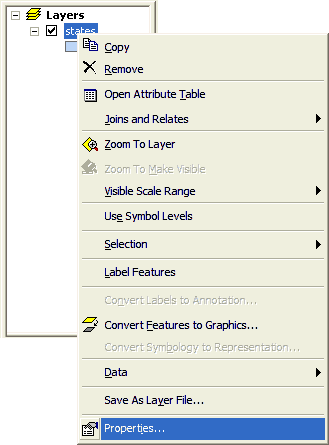 Procedure
: Labeling a Map Layer ArcGIS Pro, in the Table of Contents, right-click on the name of the layer, e.g. states.
Properties....
Procedure
: Labeling a Map Layer ArcGIS Pro, in the Table of Contents, right-click on the name of the layer, e.g. states.
Properties....Shortcut: you can also open a Layer Properties
dialog by double-clicking on the layer’s name
in the Table of Contents.
Layer Properties, click on the tab Labels, which looks like the following: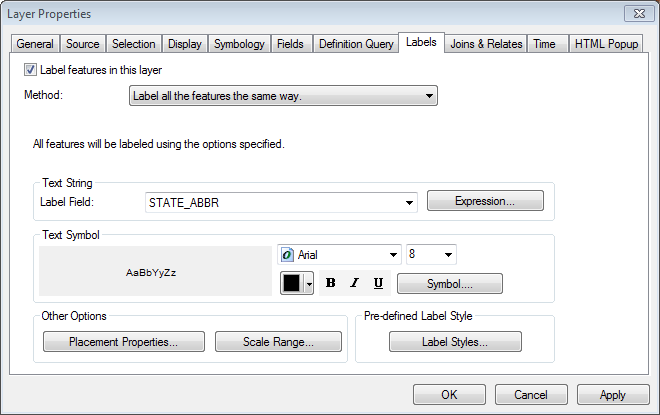
 Label features in this layer.
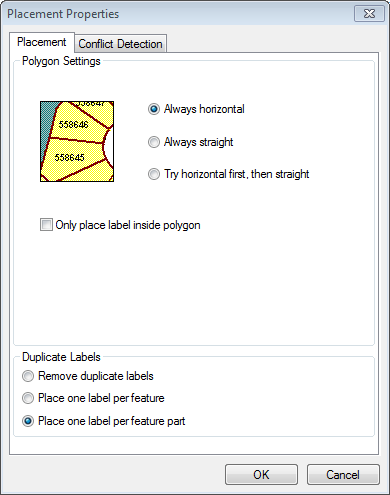 In the section Text String, in the menu Label Field, choose which attribute you want to use for the labels. states, and then, in the layer’s contextual menu, selecting the menu item Label Features.
Zoom into the map to verify that the labels you’ve added appear at an appropriate scale.
Right-click on the map layer again and select Properties to bring up the Layer Properties screen. Now select the Symbology tab.
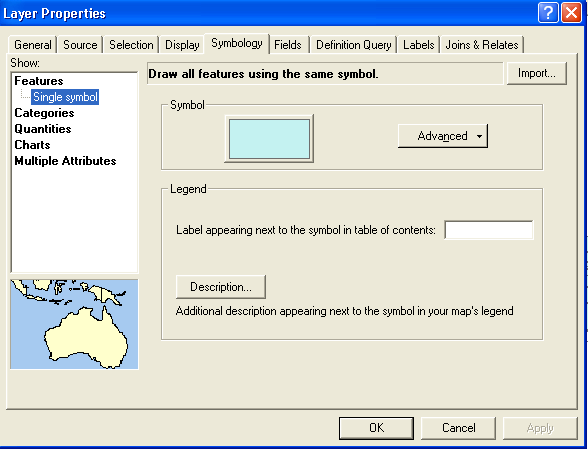
At present, the map is colored using a single color (symbol) for every feature (state polygon). If we simply wanted to change this color, we could click on the colored rectangle and select a different color. However, what we want to do is color the states different colors. To color the states different random colors, select Categories (which will bring up a new screen), set the Value Field to STATE_NAME--because we want to give different colors to states with different names. Then choose a Color Scheme on the right that consists of patches of distinct colors.
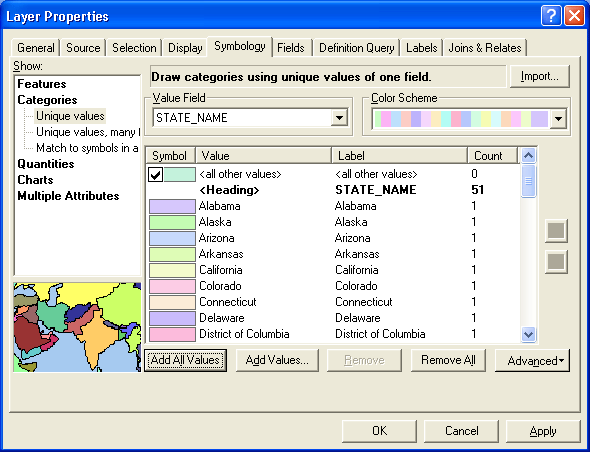
Click the Add All Values button and OK. Each state will now be colored by one of the colors from the scheme you chose. You can go back to the original single color for all states through the Symbology tab by selecting Features then Single Symbol then OK.
|
Checklist for Coloring states random colors
|
Right-click the states layer, select Properties and then the Symbology tab. Select Quantities on the left.
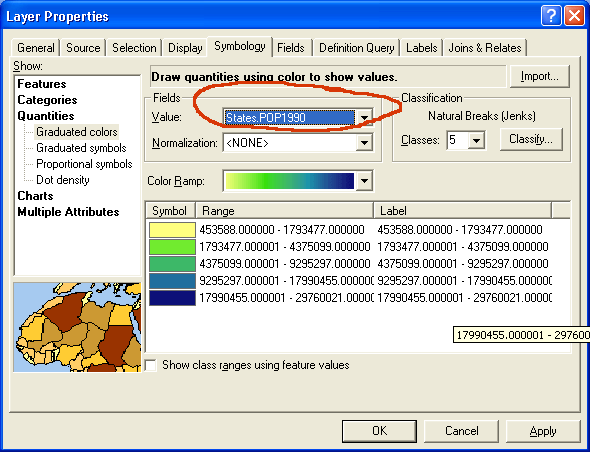
Begin by selecting the quantitative variable for coloring the map as the Value in the Fields section.
Coloring a map using a quantitative variable is more complicated than coloring it using random different colors. There are three basic choices to make:
ArcGIS Pro will by default use five categories and the natural breaks method for dividing the values into five categories. The natural breaks method tries to draw the lines between categories of values where they naturally break. If you want more categories, you can easily change the number. Usually between five and eight categories works reasonably well. If you use too many categories, the color values may be difficult to distinguish.
To use a different method of classifying values, click the Classify button over on the right side of the screen.
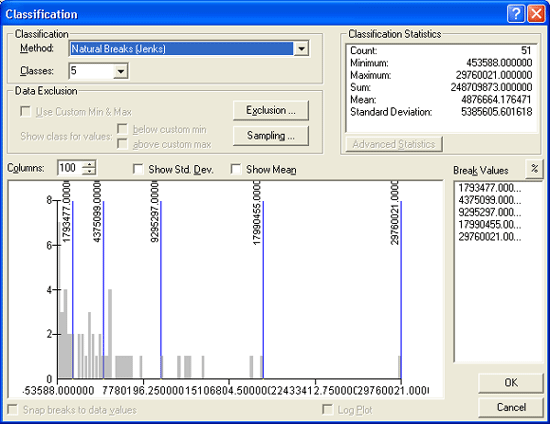
The quantile method creates categories with near-equal numbers of features in each. If we use it to create five categories of states and there are 51 states (50 states and the District of Columbia), we will get categories that each contain ten or eleven states. The equal-interval method divides the values into categories whose value ranges are the same. Choose one of these methods and click OK on this screen and then on the Layer Properties screen. The map will be colored--or symbolized according to the choices you made.
|
Checklist for coloring a map using a quantitative field
|
When looking at a map like the previous one, which displays population as a color spread out over the entire state, our brains automatically integrate the area, emphasizing larger states over smaller states, even if they have the same population. Compare, for example North Dakota and Alaska — which one looks like it has the larger population? They actually have the same population, with only a 2% difference.
So, instead of coloring a map with a simple numeric attribute such as “total population ” — an extensive quantity — it’s usually better to divide it by the state’s area to map population density — an intensive quantity. It’s also reasonable to map the ratio of any two extensive attributes where that makes sense, e.g. “people over 80” divided by “total population”, to find the relative fraction of an attribute, which is also an intensive quantity.
In either case, this is easily accomplished in ArcGIS by specifying the field in the denominator as a normalization field.
ArcGIS Pro,
in the Table of Contents,
double-click on the name of the layer, e.g. states, to open its dialog Properties.
.lyr .
Choose a root name describing
the data and symbology
in this file, e.g. states-pop2000,
and click the button Save.
Such a representation of data is known as a choropleth map, from the Greek for khōra (region) + plēthos (multitude).
Using data for the female population of each state, normalize it by the male population, and map with an appropriate symbolization.
Both the classification and normalization of your data can make major changes in the way your map looks and in the way it’s interpreted by someone who neglects to read the legend. It’s important to make these choices based on an understanding of the data, with an eye on establishing visual contrast between different data groups.
Once you have colored a layer in a particular way, it’s sometimes useful to save that configuration for future use, such as in another map. A layer document stores a reference to a data set and how it’s currently symbolized. It can be added to a map just like the plain data set.
ArcGIS Pro,
in the Table of Contents,
right-click on the name of the layer, e.g. states.
.lyr .
Choose a root name describing
the data and symbology
in this file, e.g. states-pop2000,
and click the button Save.
One of the most powerful features of ArcGIS is its ability to display multiple map layers at once, much like a set of transparencies allows different views to be displayed together in many combinations. To see how this works, we’ll add more and different types of data to your map, beginning with the plain states file you loaded earlier.
Prepared data is ready to use with ArcGIS Pro, without the need to first establish its geographic basis. There are two ways to add such data to your map:
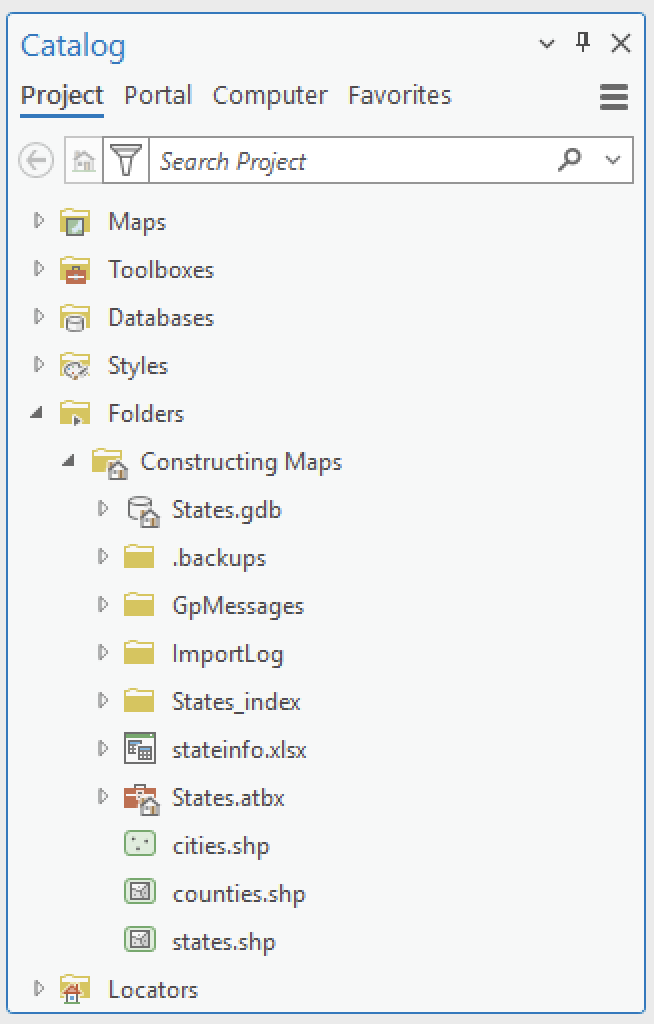 Adding Data From the Catalog ArcGIS Pro, in the pane Catalog, double-click on the link
  Folders to reveal the various folders that are directly accessible to project. states.shp, onto the map or the pane Contents.
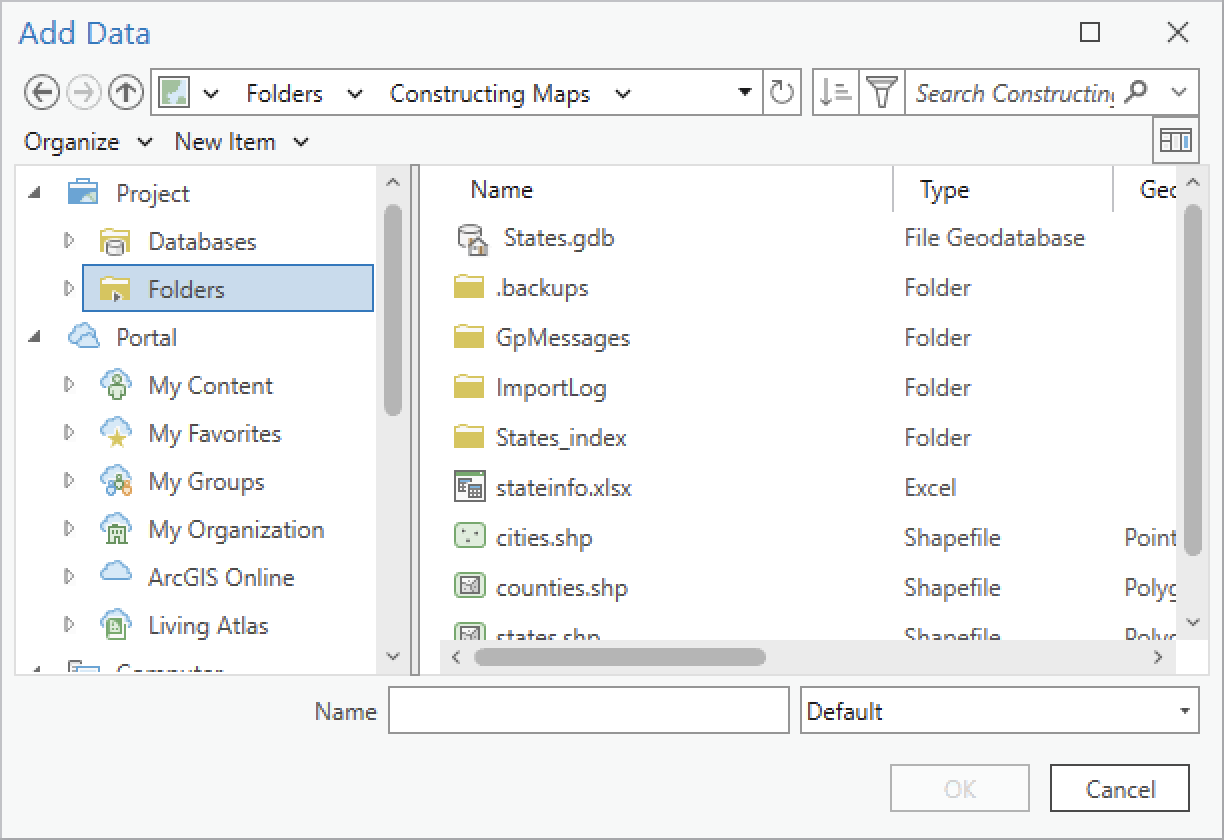 Adding Data From the Ribbon: ArcGIS Pro, in the ribbon Map, look for the section Layer and the yellow-and-black button Add Data.
 Connect to Folder.
 Constructing Maps that you previously copied to your G: or C: drive. Constructing Maps. states.shp; note that only one file with this root name appears, another feature of this special dialog.
states to
be Features using
a Single Symbol with
no fill color and a thick, bright red outline  .
. states-pop2000.lyr (see
the procedure Adding
Prepared Data to a Map for details on adding data).
It will be placed above the previous layer
in the Table of Contents, which means it
will appear in front of
it in the map itself. It references the same
data set, but includes the symbology you
created previously. and
off
states-pop2000.lyr (see
the procedure Adding
Prepared Data to a Map for details on adding data).
It will be placed above the previous layer
in the Table of Contents, which means it
will appear in front of
it in the map itself. It references the same
data set, but includes the symbology you
created previously. and
off  .
Click off the upper layer’s checkbox to reveal the
lower layer in the map, then click it back on again. ArcGIS Pro,
in the Table of Contents,
right-click on the more symbolized layer states-pop2000.
.
Click off the upper layer’s checkbox to reveal the
lower layer in the map, then click it back on again. ArcGIS Pro,
in the Table of Contents,
right-click on the more symbolized layer states-pop2000. Remove.
Next we’ll add a different type of data, a set of points:
ArcGIS Pro, in the toolbar Standard, click on the button Add Data. Constructing Maps. cities.shp shows
points, indicating the type of data to be displayed.
Click on cities.shp,
and click the button Add.
cities.shp shows
points, indicating the type of data to be displayed.
Click on cities.shp,
and click the button Add.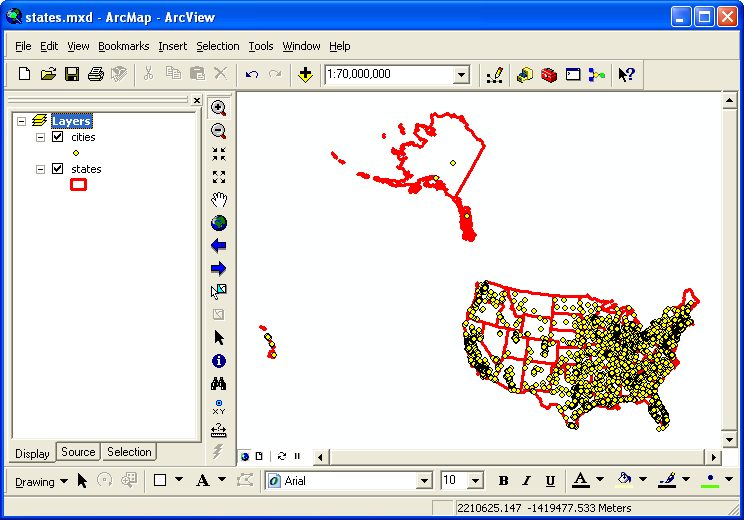 Identify to learn more about specific cities. You may need to zoom in to spatially distinguish some cities. cities,
you’ll see the same symbol
Identify to learn more about specific cities. You may need to zoom in to spatially distinguish some cities. cities,
you’ll see the same symbol  being
used to represent the layer on the map. Click on the symbol to open
the dialog Symbol Selector,
and try out the available options.
being
used to represent the layer on the map. Click on the symbol to open
the dialog Symbol Selector,
and try out the available options.
Can you make just the capital cities visible on the map above? (Hint: right-clicking on pretty much anything in ArcGIS will bring up a contextual menu of available options for using it.)
Save your result as a layer file so you can easily reference it later.
The previous step only allows you to select a uniform symbology for the points in a point layer. Like polygons, it’s also possible to vary the symbol based on values in the layer’s attribute table, but in several unique ways such as changing the symbol size.
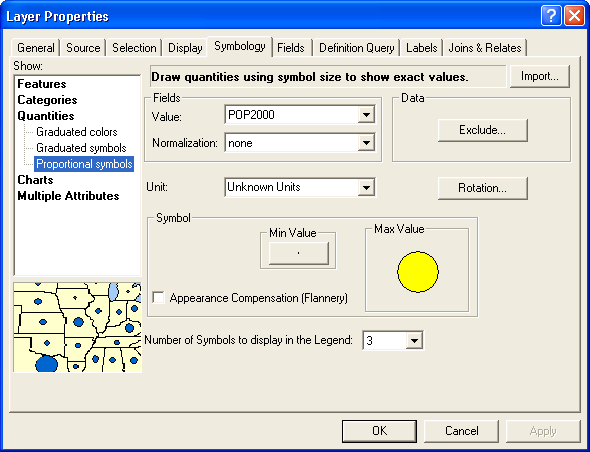 Procedure
: Symbolizing a Point Layer Using Proportional Symbols ArcGIS Pro, in the Table of Contents, double-click on the layer’s name, e.g. cities.
Layer Properties, click the tab Symbology.
cities.
Procedure
: Symbolizing a Point Layer Using Proportional Symbols ArcGIS Pro, in the Table of Contents, double-click on the layer’s name, e.g. cities.
Layer Properties, click the tab Symbology.
cities.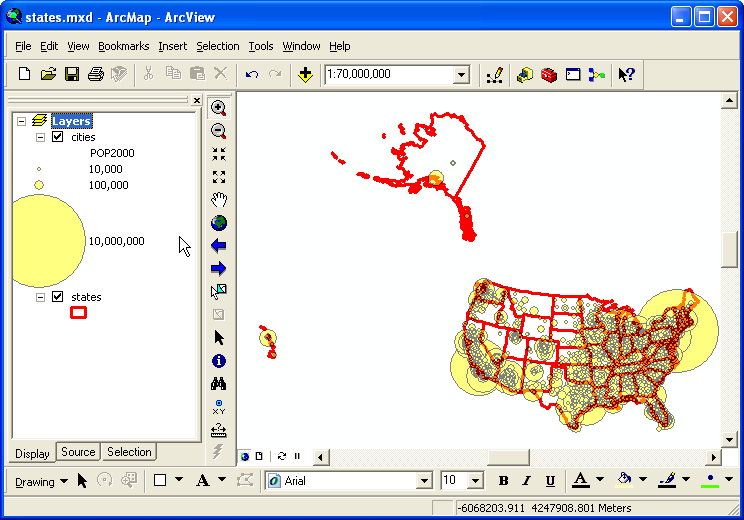
We’ll add one type of raster image, representing elevation. It will come from a local repository of map data that we maintain here at Amherst College.
ArcGIS Pro,
turn off the layer cities so that
only the
layer states is visible.
Add
Data.
Constructing Maps, and add the file  gtopo_1km by
clicking once on its icon and then clicking the
button OK.
(If you click twice on an image, it may “open”
like a folder and provide its three color bands
separately, depending on the type of image.) Note how its icon shows
a grid of pixels, indicating the type of
data (image). states layer.
gtopo_1km by
clicking once on its icon and then clicking the
button OK.
(If you click twice on an image, it may “open”
like a folder and provide its three color bands
separately, depending on the type of image.) Note how its icon shows
a grid of pixels, indicating the type of
data (image). states layer.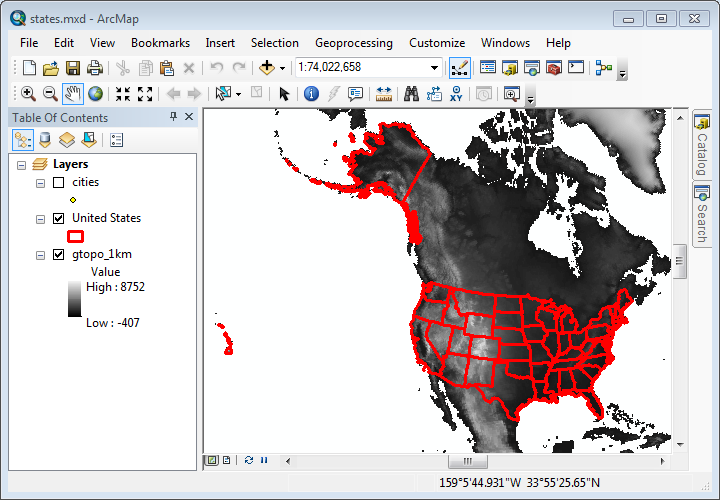
 Raster
layers have one value for each pixel, in this
case representing elevation, and as
with vector layers that information can also be displayed: Identify. states),
in the dialog Identify,
change the menu Identify
from: from the default menu item, <Top-most
layer>, to another such as <Visible
layers> or specifically
Raster
layers have one value for each pixel, in this
case representing elevation, and as
with vector layers that information can also be displayed: Identify. states),
in the dialog Identify,
change the menu Identify
from: from the default menu item, <Top-most
layer>, to another such as <Visible
layers> or specifically  gtopo-1km. Identify).
A number of other color
ramps are available,
e.g.
gtopo-1km. Identify).
A number of other color
ramps are available,
e.g.  ,
which runs from bluish green at the lowest elevations
to red and then white at the highest elevations
(suggesting “snow-capped mountains”). gtopo_1km to
bring up the dialog Layer Properties,
click on the tab Symbology, and
try out a number of different color ramps.
,
which runs from bluish green at the lowest elevations
to red and then white at the highest elevations
(suggesting “snow-capped mountains”). gtopo_1km to
bring up the dialog Layer Properties,
click on the tab Symbology, and
try out a number of different color ramps.
The colors in the color ramp are associatd with stretch
Zoom in on New England. We know it’s mountainous here, but you won’t see much contrast because the color ramp is set to the work with all of the mountains in the world. Set a more reasonable range of elevations by finding an appropriate type of stretch for the color ramp.
A lot of geographic data is available from government, commercial, and other sources, often in a ready-to-use format.
Often you’ll want to provide background for your data, such as streets or terrain, and not have to worry about constructing it yourself.
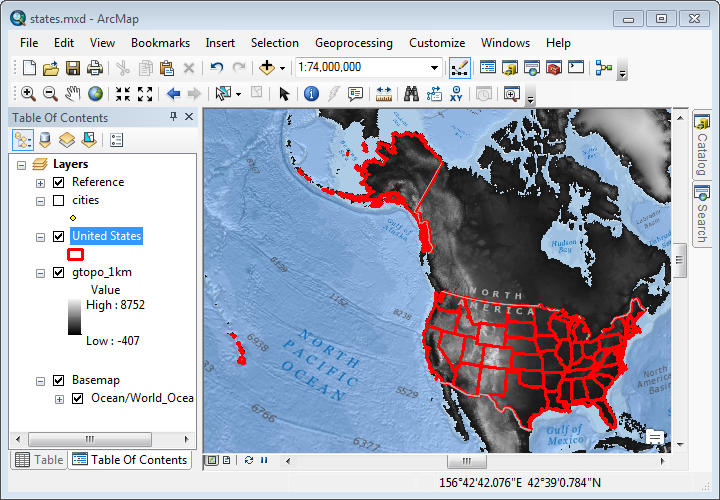
The standard basemap we’ve already seen is provided by ESRI, the makers of ArcGIS, through Internet servers.
But there are many more options you can easily use instead.
Basemaps are relatively easy to add ArcGIS Pro, though it’s best to first add your own data to establish its view and ensure a good choice of background. Then:
ArcGIS Pro, in the toolbar Standard, click on the menu arrow Add Datanext to (or menu File > Add Data), and then
  Add Basemap….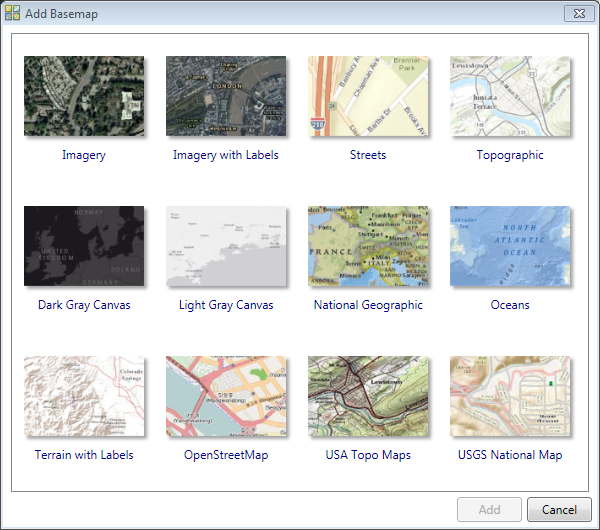
ArcGiS Online (www.arcgis.com) is a source of geographic data in formats that are ready-to-use with ArcGIS “Desktop”.
It has datasets provided by ESRI (in particular the same basemaps as above, and others that sometimes duplicate
what’s in G:\Maps),
as well as many that are contributed by others.
ArcGIS Online (www.arcgis.com) can be accessed both from within ArcGIS Desktop and, more conveniently, from any web browser.
 Start.
 Chrome or
  Firefox or
  Internet Explorer
(perhaps in the folder Networking and Communications),
and click on it.
Internet Explorer
(perhaps in the folder Networking and Communications),
and click on it.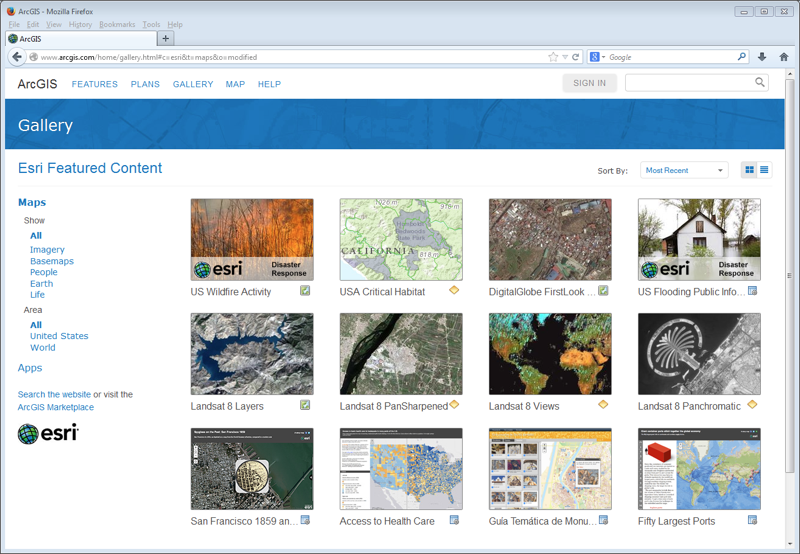
 Search for,
type one or more keywords, e.g. usa major rivers, and in the menu that pops up, click on the
menu item Search All Content. Show ArcGIS Desktop Content; otherwise everything displayed will only work within ArcGIS.com.
Search for,
type one or more keywords, e.g. usa major rivers, and in the menu that pops up, click on the
menu item Search All Content. Show ArcGIS Desktop Content; otherwise everything displayed will only work within ArcGIS.com. Shapefiles and CSV tables;
 Layer
Packages;
Layer
Packages; Features, Tiles, WMS, KML, and Map Images, which are internet data services;
 Map Documents, which are .mxd files.
 Web
Maps.
These can be fun to study and play around
with, but aren’t usable with ArcGIS Desktop
10.
Web
Maps.
These can be fun to study and play around
with, but aren’t usable with ArcGIS Desktop
10.You can click on the titles of these data sets to get more information about them, e.g. their size, author, and any restrictions on their use.
USA Major Rivers,
click on menu More options and select the menu item Open in ArcGIS for Desktop. Constructing Maps),
and then add
it to your map.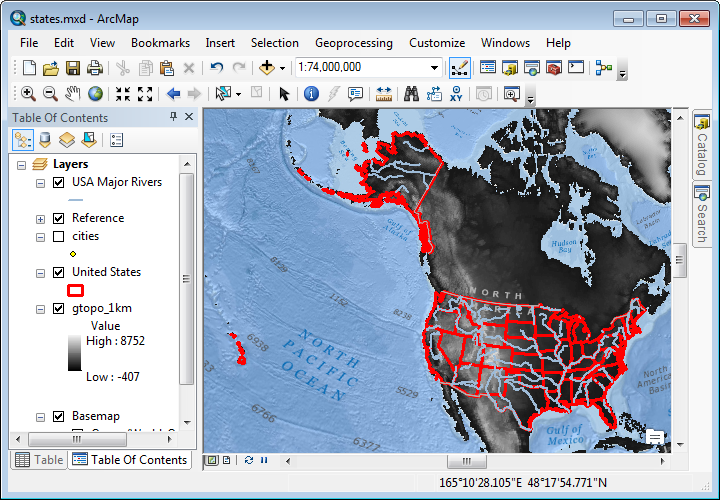
It’s always worth searching the Internet for geographic data.
Much of this data must be converted into a format that ArcGIS can properly display, and working with such data will be the topic of the next few sections.
However, many sets of data are “prepared” data, i.e. they are ready to be loaded into ArcGIS and immediately displayed.
Commonly such data would be labeled as shapefiles, though they are likely to be packaged as a .zip archive that Windows will automatically open.
Another relatively new format is the geoTIFF, a standard TIFF image that’s been enhanced with geographic information.
Look around on ArcGIS Online, or on the Internet using a keyword such as shapefile or geoTIFF, to find another dataset related to your interests and map it. Would it be relevant to add other related datasets? If so, see if you can find and add them to your map. Symbolize them so that they’ll stand out relative to the other datasets on your map.
 G:
G: C:
C: Offline access
 Type here to search
 Show File Extensions (System Settings)
 Change settings to show file extensions
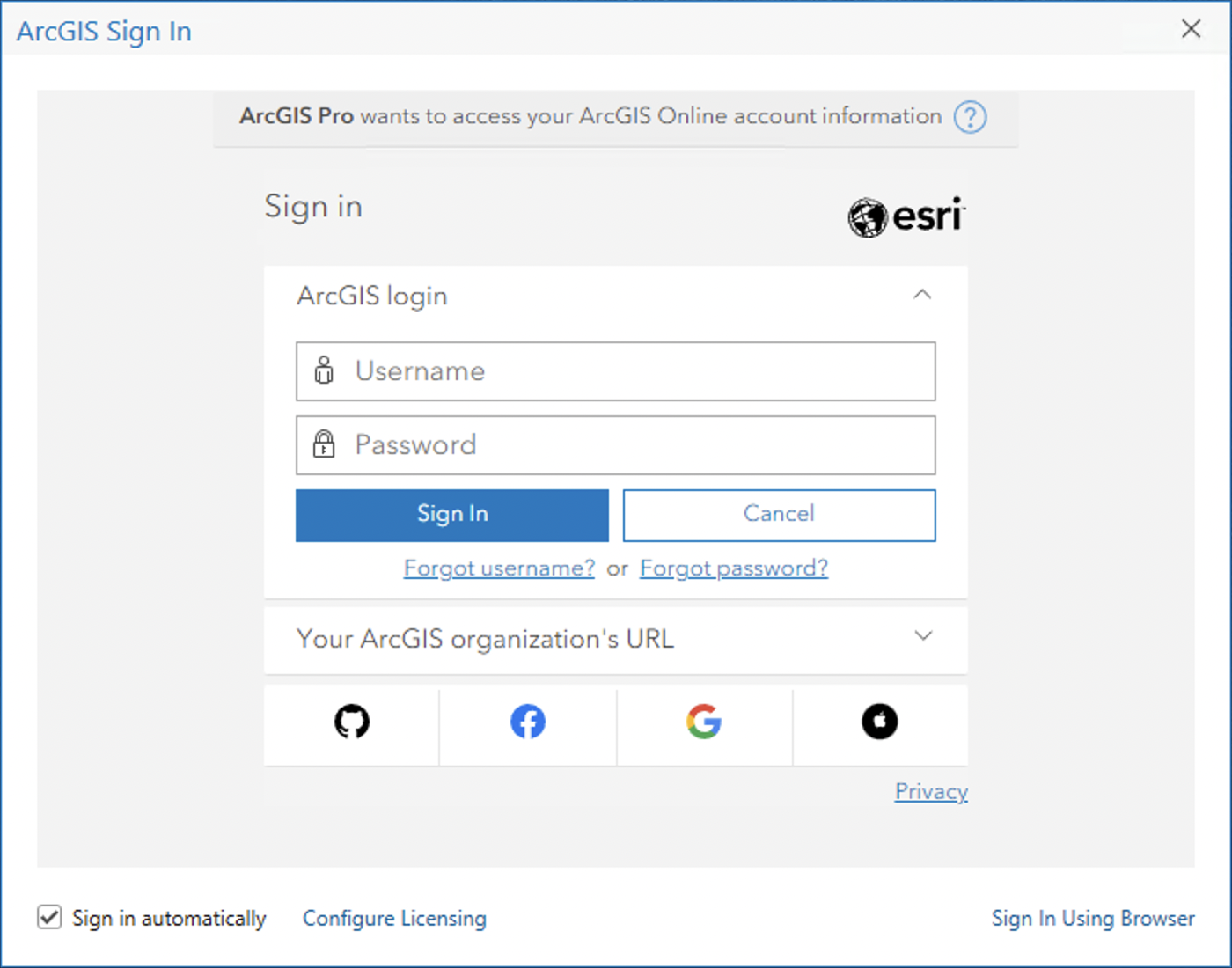 Procedure : Initializing ArcGIS Pro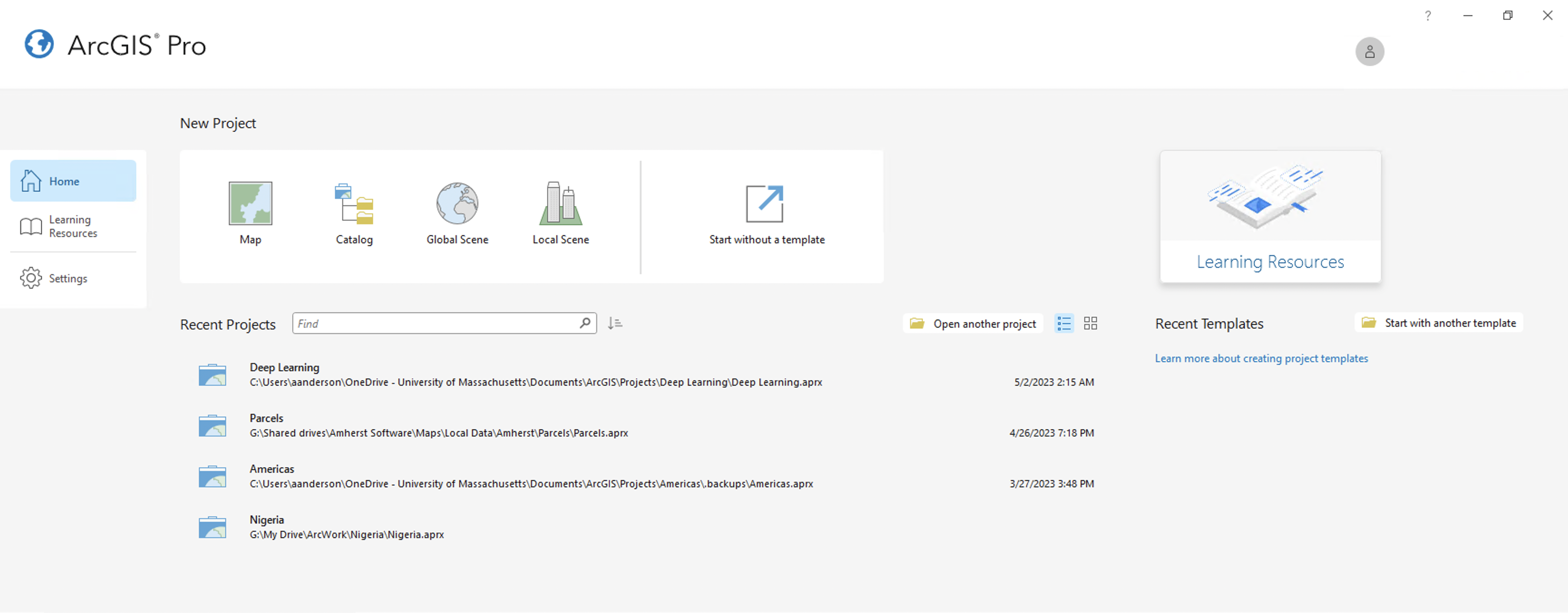
 Map
Map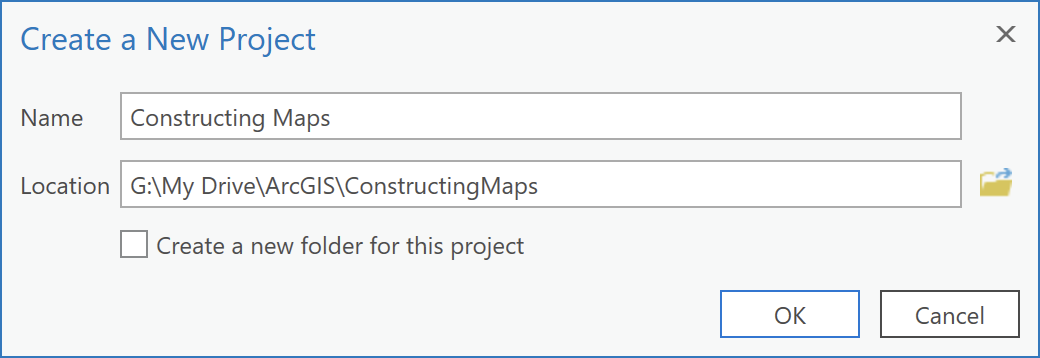 In the dialog
  Browse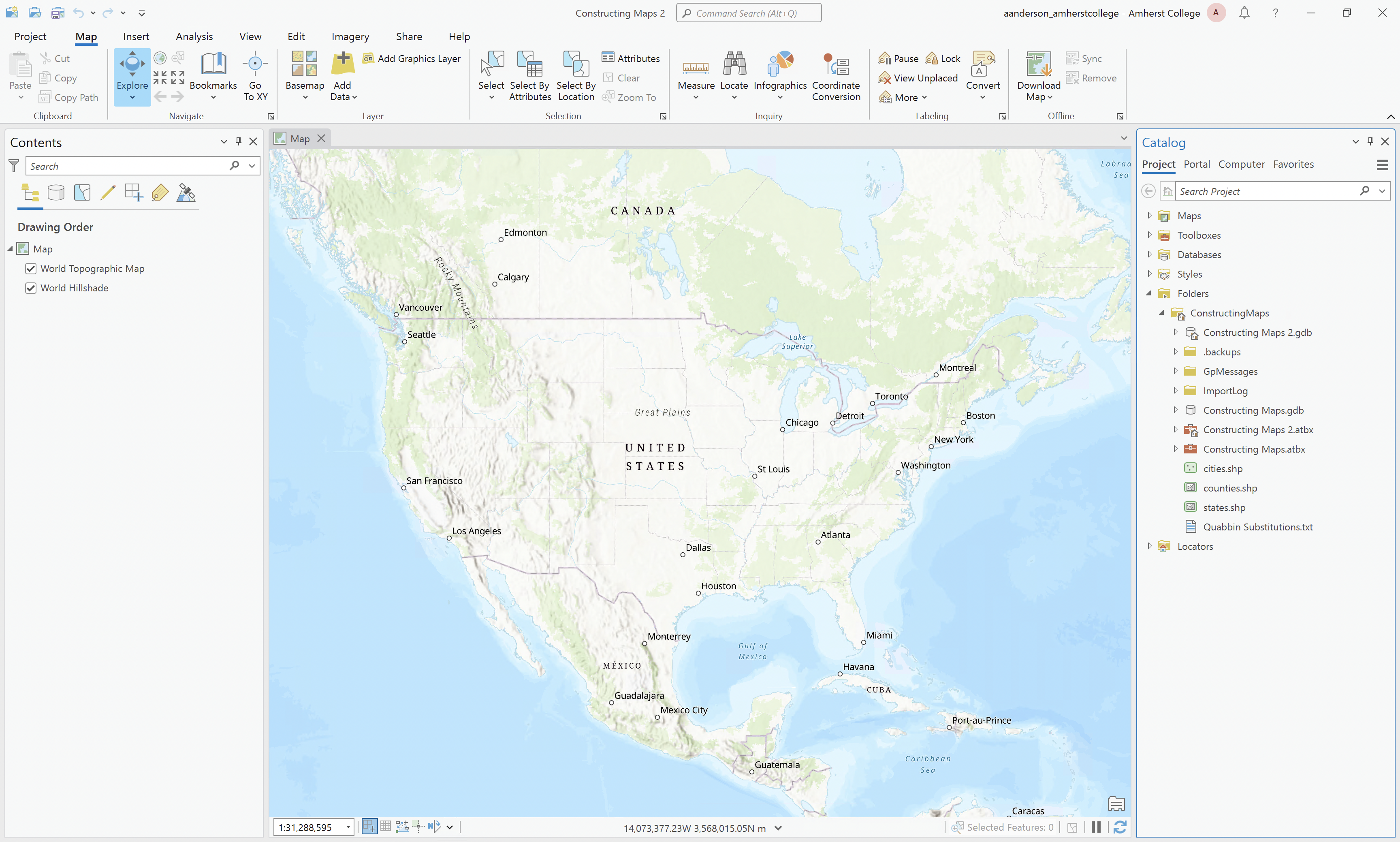
 Constructing Maps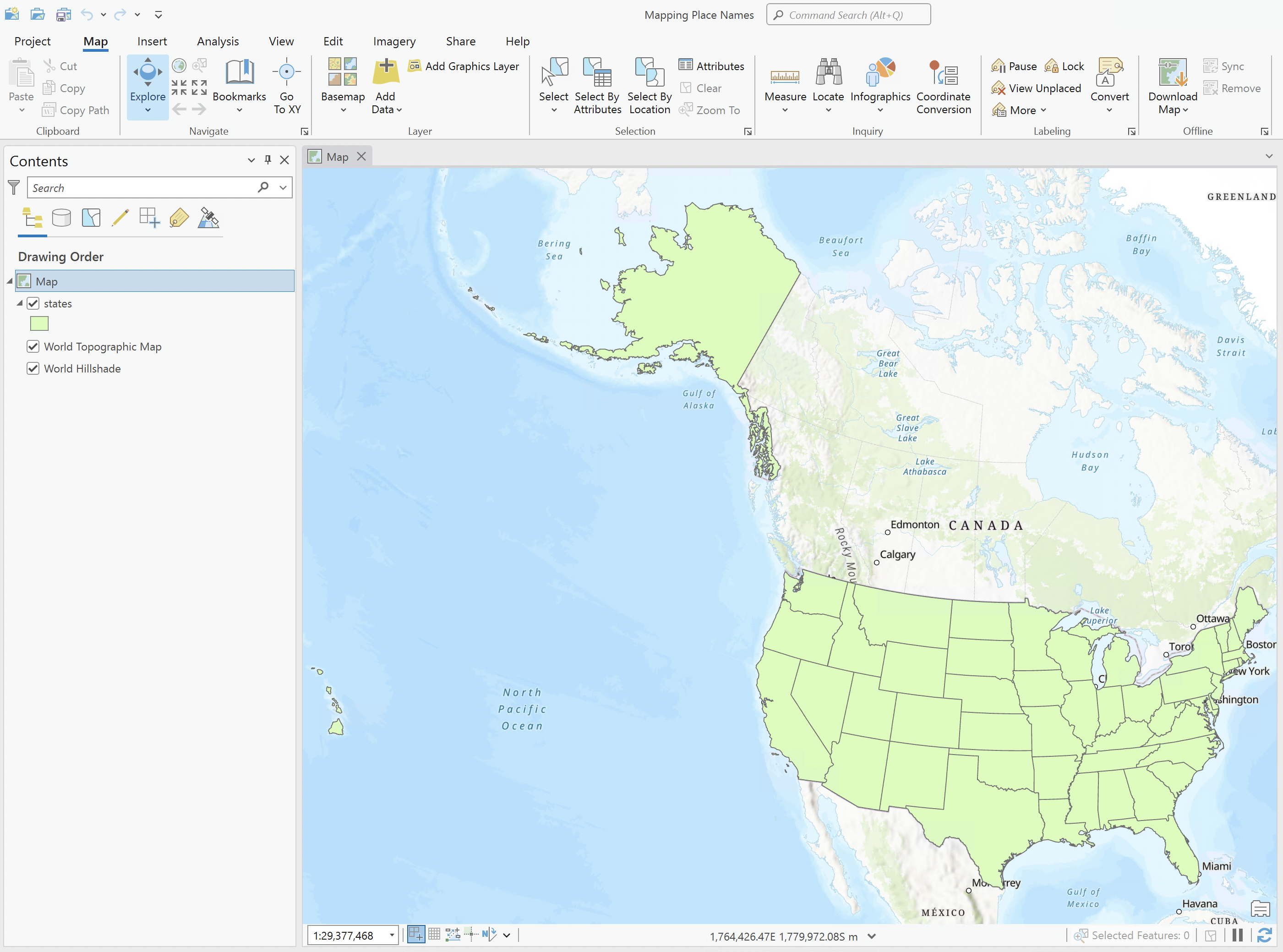
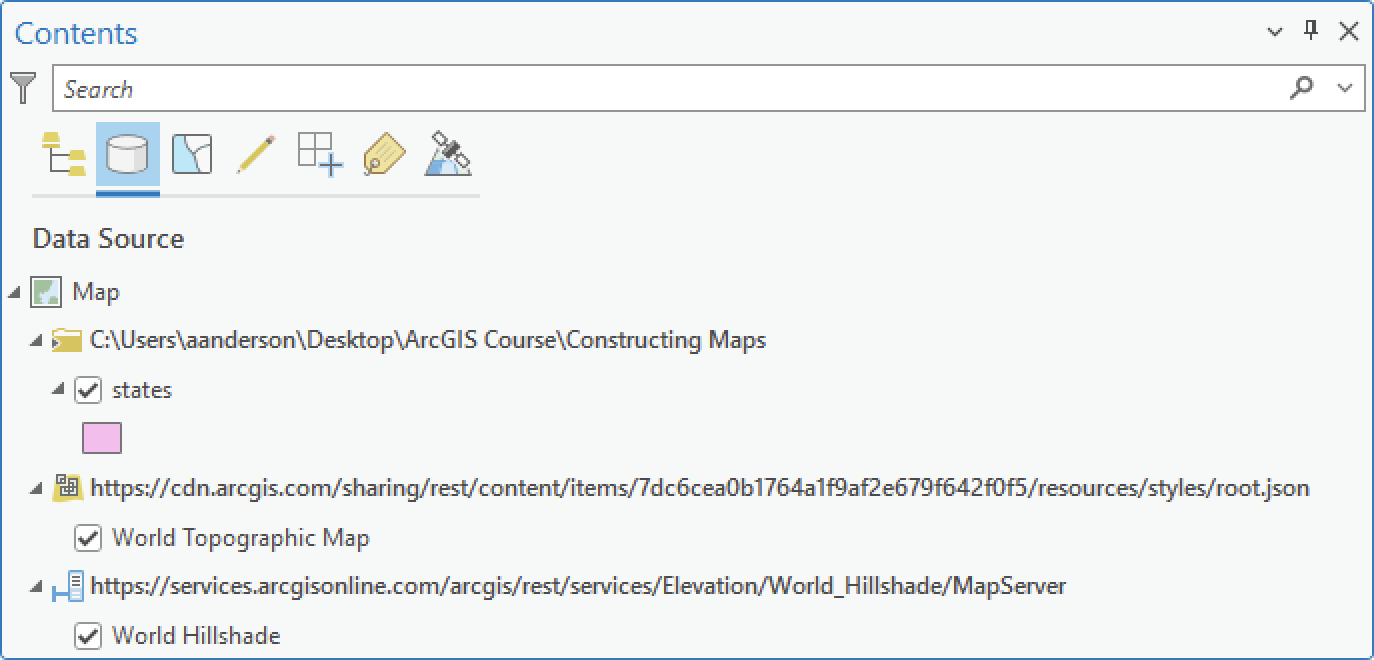 The pane

 Save Project
 Open another project
 Open Project